
Appearance
ESL Inspection and RMA Assessment Guide
1. About this Document
This guide covers physical damage inspection and update-function testing to support ESL hardware assessment and RMA review.
2. Target Audience
This manual is intended for those who are managing store operations, procuring ESLs or supporting ESL operations.
3. Contact Information
For questions or feedback regarding this manual, please contact: rma@smartlabelsolutions.com
4. Glossary
| Term | Description |
|---|---|
| AP (Access Point) | Device facilitating communication between ESLs and the server. |
| ESL (Electronic Shelf Label) | Digital price labels installed on store shelves. |
| eTag | Alternative term for ESL. |
| Nebular | A series of ESL products. |
| Nebular Pro | A series of ESL products. |
| PDA | Handheld device used for product association. |
| PriSmart | The software platform for managing ESL and product association. |
| Product Association | The process of linking ESLs with products. Often referred to simply as "Association". |
5. Malfunctioning Cases
5.1 Physical Damage Inspection
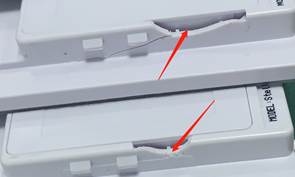
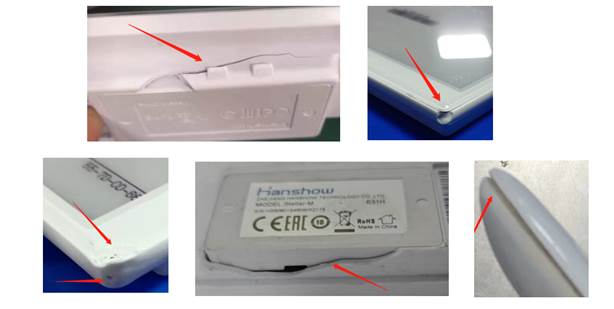
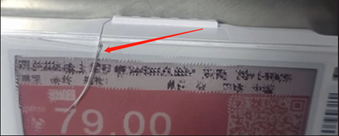
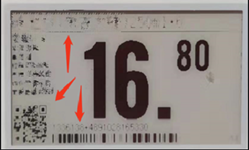
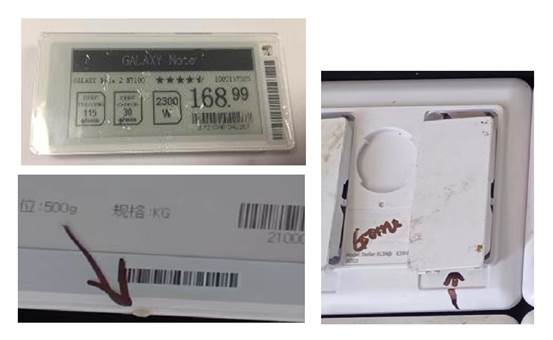
Before proceeding with technical checks, inspect the ESL for any physical damage. The following types of damage do not qualify for an RMA (Return Merchandise Authorization). If such damage is present, notify your supervisor for the appropriate procedures. Smart Label Solutions may offer recycling services. Please refer to their RMA policy for more information.
· Case Damage
· Frame Damage
· Scratched and Cracked Screen
· Internal Screen Damage
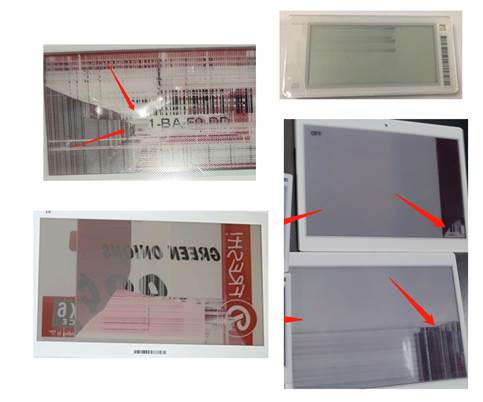
· Blurry or Distorted Screen
· Liquid Damage
5.2 Update Functionality Test
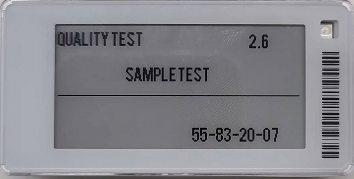
If the ESL passes the physical inspection, the next step is to verify whether it can update correctly. Perform an update to ensure that all information is displayed properly. If the ESL was recently moved, leave it near the Access Point (AP) for at least one hour to allow for updates.
In the event the ESL does not update, check the Association Information from PriSmart. Since PriSmart is subject to periodic updates, please refer to the most recent version of the PriSmart User Manual (Section 5.1.4.1) for detailed instructions. Below are some common statuses that the ESL may display:
· Update succeeded
· Updating
· Re-pushing
· ESL offline
· Low battery
· Data error
· AP offline
· ESL failure
· Pending
· Template error
· ESL working offline
· Communication timeout
· No store in ESL working
If the status shows ESL offline, verify with the store if the ESL was exposed to inappropriate temperatures, such as placing a normal ESL in a freezer or exposing it to high heat. If so, the ESL is not eligible for RMA.
For an ESL failure status, attempt to repush the update. If the issue persists, this indicates a hardware malfunction, and the RMA process should be initiated.
For all other statuses, refer to the PriSmart system for guidance or consult the PriSmart User Manual for the latest troubleshooting steps.